


Moving to Microsoft's Windows Vista is becoming a necessity rather than an option. The operating system is already delivered standard on most new PCs, and Vista solves enough problems with older versions of Windows that it is tempting holdouts as well.
But the move to Vista can be fraught with frustration. One frequent complaint among new users is that Vista seems slower under some circumstances than their previous operating system.
The good news is there are steps almost everyone can take with their current system to make sure Vista is running as fast as it can.
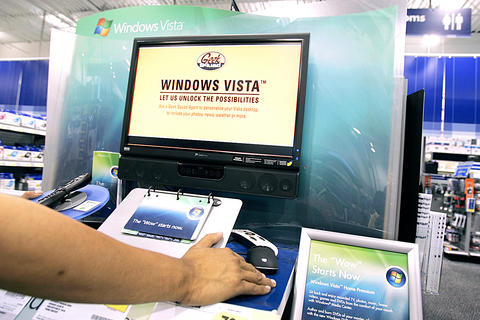
PHOTO: AP
Tune your display
Vista's Aero interface is responsible for much of the perceived slowness of the operating system. It's true that you need a beefier graphics card to run Aero adequately - cards with 256MB of video RAM are recommended. But even with a fast card, Aero can seem pokey. .
You don't have to dump Vista to get the snappiness back, though. First, turn off Aero's transparency. To do so, right-click the desktop, select Personalize from the pop-up menu, and then click Windows Color and Appearance. Uncheck the box labelled "enable transparency." Click OK.
Another option is to get rid of Aero's transparency and many of its other resource-intensive features by simply using a theme that looks more like a previous version of Windows. To do this, you simply choose a non-Aero theme.
Right-click a blank space on the Vista desktop, and select Personalize from the pop-up menu. In the Personalize dialog, select Windows Color and Appearance. Click Open Classic Appearance Properties. Now choose a theme in the Color Scheme list box. You'll have choices such as Windows Classic, Windows Vista Basic, or Windows Standard theme.
You might also want to ditch the Vista sidebar. While it's a nifty feature, many folks have already replicated the functionality of the sidebar's applets with various taskbar utilities. And the applets in the Vista sidebar can be resource intensive and slow down screen redraws.
To remove the Sidebar, right-click it, select Properties from the pop-up menu, and then uncheck "Start Sidebar when Windows starts." Click OK. Then right-click the Sidebar and click Close Sidebar. If you ever want it back, just open the Start orb, type "sidebar" in the search field, and press Enter.
Turn off indexing
Vista constantly indexes the contents of your hard drive. The reason: search fields are ubiquitous in the operating system - everywhere from the Start menu to Explorer windows. But on some machines, all that indexing can take a serious toll on performance.
You can turn off automatic indexing altogether and get back the processor cycles that otherwise would be devoted to it. To turn off indexing, click the Start orb, and then Computer. Right click the C drive.
On the General tab of the resulting dialog box, remove the check mark next to "Index this drive for faster searching," and click OK. On the subsequent dialog box, select "Include subfolders and files."
Turn off UAC
Vista's user account control (UAC) is one facet of the operating system's beefed-up defense against malicious software. Unfortunately, UAC prompts users incessantly with dialog boxes.
The result is that many things seem to take longer - and in fact they do, as you're required to perform more steps to complete tasks that were quicker in XP.
You can disable UAC, however, by opening the Control Panel and selecting User Accounts. Select "turn user account on or off," and then uncheck the user account control box. You'll need to restart your computer for the change to take effect.
Lose background tasks
It makes sense to keep an eye on what's loading in the background every time you start up your computer - and to get rid of unnecessary background tasks.
You can get some idea of what's loading each time you boot up by glancing at the little icons that appear in your taskbar's system tray. Next to the clock in the taskbar will typically be several - sometimes many - little icons. Each one represents a background task.
There are a couple of steps you can take to get rid of background tasks you don't need. First, right-click any system tray icons to see whether there's a pop-up menu associated with each. Often you can find an option within that pop-up menu to disable the background task from starting again.
If that doesn't work, run the program MSCONFIG, which is supplied on all versions of Vista. Click the Start orb, and type "msconfig," without the quotation marks, and press Enter. Msconfig is a small applet that contains a Startup tab on which you'll find a list of everything that starts when your computer does. Inspect the list of items, and deselect anything that you know you don't need.
Use Ready-Boost
Ready-Boost is a Vista-only technology that allows you to give more memory to the operating system simply by plugging in a Ready- Boost compatible flash drive into a USB 2.0 port on your PC. You'll find Ready Boost capable flash drives at most computer retailers these days, and the prices are reasonable - generally US$20 to US$50 dollars.
Users report mixed results with Ready Boost, but the best performance gains seem to be attained by using a 2GB flash drive. Any time you insert a compatible flash drive into the USB port of a Vista computer, the operating system will recognize it instantly and ask you whether you wish to use the memory to "speed up Windows."
Upgrade your system
If you can, give Vista the hardware that it needs to supply the best performance. That means at least 2GB of system RAM, and 7200rpm hard drive with plenty of free space, a dedicated graphics card with at least 128MB of RAM, and a recent-vintage processor. Even a machine with these specs, however, will benefit from the performance tips provided above.
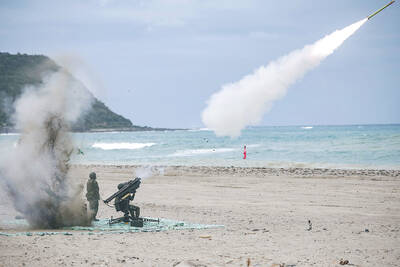
In late October of 1873 the government of Japan decided against sending a military expedition to Korea to force that nation to open trade relations. Across the government supporters of the expedition resigned immediately. The spectacle of revolt by disaffected samurai began to loom over Japanese politics. In January of 1874 disaffected samurai attacked a senior minister in Tokyo. A month later, a group of pro-Korea expedition and anti-foreign elements from Saga prefecture in Kyushu revolted, driven in part by high food prices stemming from poor harvests. Their leader, according to Edward Drea’s classic Japan’s Imperial Army, was a samurai

The following three paragraphs are just some of what the local Chinese-language press is reporting on breathlessly and following every twist and turn with the eagerness of a soap opera fan. For many English-language readers, it probably comes across as incomprehensibly opaque, so bear with me briefly dear reader: To the surprise of many, former pop singer and Democratic Progressive Party (DPP) ex-lawmaker Yu Tien (余天) of the Taiwan Normal Country Promotion Association (TNCPA) at the last minute dropped out of the running for committee chair of the DPP’s New Taipei City chapter, paving the way for DPP legislator Su
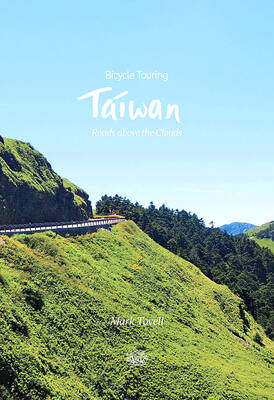
It’s hard to know where to begin with Mark Tovell’s Taiwan: Roads Above the Clouds. Having published a travelogue myself, as well as having contributed to several guidebooks, at first glance Tovell’s book appears to inhabit a middle ground — the kind of hard-to-sell nowheresville publishers detest. Leaf through the pages and you’ll find them suffuse with the purple prose best associated with travel literature: “When the sun is low on a warm, clear morning, and with the heat already rising, we stand at the riverside bike path leading south from Sanxia’s old cobble streets.” Hardly the stuff of your
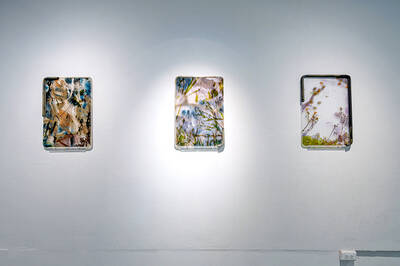
Located down a sideroad in old Wanhua District (萬華區), Waley Art (水谷藝術) has an established reputation for curating some of the more provocative indie art exhibitions in Taipei. And this month is no exception. Beyond the innocuous facade of a shophouse, the full three stories of the gallery space (including the basement) have been taken over by photographs, installation videos and abstract images courtesy of two creatives who hail from the opposite ends of the earth, Taiwan’s Hsu Yi-ting (許懿婷) and Germany’s Benjamin Janzen. “In 2019, I had an art residency in Europe,” Hsu says. “I met Benjamin in the lobby


 RSS
RSS