


Buying a notebook computer online today is a great idea. Thanks to intense competition among manufacturers, you can find deals online that represent a true bargain -- unless you start adding options at the time of purchase. Know which options to pass up, though, and you could walk away with a perfectly capable notebook for considerably less than you would pay in a traditional store.
CPU
Buy a notebook online, and the first decision you'll have to make is whether to spend more money on a faster processor than the one offered in the base model. Unless money is no object, just say no. The CPU in notebook computers is rarely the performance bottleneck, and even today's slowest processors are plenty fast to speed your way through business applications, the Internet, and e-mail.
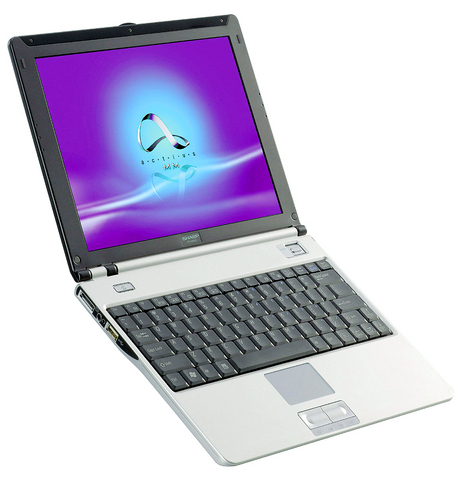
PHOTO: NY TIMES NEWS SERVICE
There's a miniscule amount of real-world difference between a base system with, say, a 1.7GHz Pentium chip and a more expensive system with a 2GHz chip.
Display
You'll find LCD panels with designations such as XGA, SXGA, and UXGA. Wide-screen notebooks put a "W" in front of those acronyms, so you'll see WXGA, for example, for the base models.
SXGA offers finer resolution than XGA, and UXGA offers finer resolution than SXGA. Finer doesn't always mean better, however. Each bump up in resolution for a notebook computer means that on-screen elements such as icons, menu choices, and text will appear smaller than with the lower resolution panels.
For aging eyes, smaller is not better -- it's worse.
The standard notebook resolution offered by the model you're looking at is perfect for the majority of people. Those with good eyes who need to get the most information on the screen -- for instance, in order to see extra wide spreadsheets or place two programs side-by-side -- can pay more for the higher resolution screens.
Memory
Memory is one of the easiest do-it-yourself upgrades for notebook computers today, and you can save considerable money by not purchasing extra memory through the manufacturer of your notebook. Instead, purchase the base amount of memory, and go to an online memory vendor such as Newegg.com or www.crucial.com to purchase the amount of memory you want.
Upgrading a notebook computer's RAM from 512MB to 1GB at the time of purchase, for example, can typically cost from US$150 to US$200. That same amount of memory costs half that elsewhere.
Installing memory in a notebook PC usually involves loosening a screw or two on the back of the unit in order to remove a plastic cover. From that point, you just detach the installed RAM and insert your new modules. Detailed instructions for installing RAM in a notebook are widely available online. Notebook user manuals also often include information about upgrading RAM.
Hard drive
Next to amount of memory, the hard drive in a notebook computer has one of the biggest impacts on overall system performance. Drives that spin at 7200 revolutions per minute (rpm) are to be preferred. Base model notebooks from manufacturers today typically come with 40GB hard drives that spin at 4200 rpm or 5400rpm.
Upgrading the hard drive while purchasing a notebook computer can cost you US$150 or more. A 7200rpm 60GB hard drive purchased separately costs just over US$100. So skip the upgrade at the time of purchase. Like memory, the hard drive in your notebook is one of the easiest components to upgrade. You simply unscrew a cover, slide out the drive, and slide in the new one. Of course, you'll have to reinstall the operating system and any of your applications when you install a new hard drive. You should have the software ready before you perform the operation.
But then you can purchase a new hard drive for less and sell the one that came originally with your notebook computer.
Upgraded graphics
In the past, notebook makers cut costs by using integrated graphics controllers, which shared memory with the rest of the computer, rather than a separate, dedicated graphics chip. In those cases, it made sense to upgrade to a dedicated graphics card at the time of purchase.
Integrated graphics have improved, though. Intel's latest media accelerator 950 integrated graphics module, for instance, powers through typical business applications, and it's all that most people need. Spend more on a dedicated graphics card only if you're into 3D games.
Warranties
Notebook manufacturers make the most money on extended warranties. Many offer up to four-years of onsite service and no-fault replacement should you drop your computer.
These warranties are great, but they can potentially double the cost of your notebook computer. Before you decide on a warranty, check with any existing insurance provider that you may have -- for your home or apartment, for instance, to see whether they have a policy that covers computer equipment. Many do. These policies typically cost much less than a warranty from the notebook manufacturer.
In the end, most base model notebook computers today come with every-thing that many need to work productively and happily: wireless Internet access, speedy processor, spacious hard drive. With a little know-how about which upgrades you can perform yourself at a later time, you'll find that you can save a significant amount of cash.
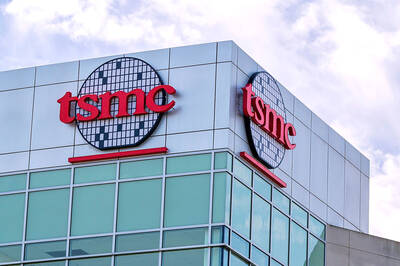
Last week, Viola Zhou published a marvelous deep dive into the culture clash between Taiwanese boss mentality and American labor practices at the Taiwan Semiconductor (TSMC) plant in Arizona in Rest of World. “The American engineers complained of rigid, counterproductive hierarchies at the company,” while the Taiwanese said American workers aren’t dedicated. The article is a delight, but what it is depicting is the clash between a work culture that offers employee autonomy and at least nods at work-life balance, and one that runs on hierarchical discipline enforced by chickenshit. And it runs on chickenshit because chickenshit is a cultural
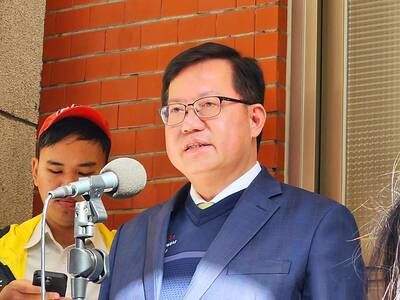
By far the most jarring of the new appointments for the incoming administration is that of Tseng Wen-tsan (鄭文燦) to head the Straits Exchange Foundation (SEF). That is a huge demotion for one of the most powerful figures in the Democratic Progressive Party (DPP). Tseng has one of the most impressive resumes in the party. He was very active during the Wild Lily Movement and his generation is now the one taking power. He has served in many of the requisite government, party and elected positions to build out a solid political profile. Elected as mayor of Taoyuan as part of the
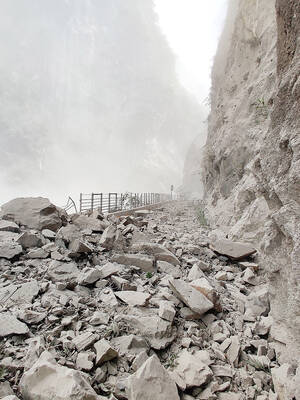
Moritz Mieg, 22, lay face down in the rubble, the ground shaking violently beneath him. Boulders crashed down around him, some stones hitting his back. “I just hoped that it would be one big hit and over, because I did not want to be hit nearly to death and then have to slowly die,” the student from Germany tells Taipei Times. MORNING WALK Early on April 3, Mieg set out on a scenic hike through Taroko Gorge in Hualien County (花蓮). It was a fine day for it. Little did he know that the complex intersection of tectonic plates Taiwan sits
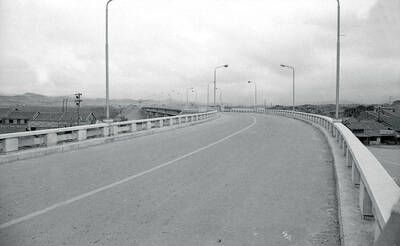
April 29 to May 5 One month before the Taipei-Keelung New Road (北基新路) was set to open, the news that US general Douglas MacArthur had died, reached Taiwan. The military leader saw Taiwan as an “unsinkable aircraft carrier” that was of huge strategic value to the US. He’d been a proponent of keeping it out of Chinese Communist Party (CCP) hands. Coupled with the fact that the US had funded more than 50 percent of the road’s construction costs, the authorities at the last minute renamed it the MacArthur Thruway (麥帥公路) for his “great contributions to the free world and deep


 RSS
RSS