


It's hard enough to find a file on a single computer. If, like many people these days, you use multiple computers, the problems are compounded.
You may have typed up some vital text to be included in your next business report, or written an e-mail message that contains some important information that you've now forgotten.
But which computer did you save it on?

PHOTO: NY TIMES NEWS SERVICE
Google has come up with a way to answer the question. The latest version of the company's popular Desktop Search tool, available for free (desktop.google.com), provides a Search Across Computers feature that will allow you to conduct searches across all of your computers while you're sitting at just one of them.
Search Across Computers, while easy to implement, comes with some caveats, however, so it's worth exploring the tool in some detail.
Once you download and install Google Desktop Search, open the tool either from your Start menu or from the taskbar icon that the program installs.
Once you do, you'll see a familiar-looking browser window with the Google Desktop logo. Click the Desktop Preferences link to the right of the search box, and then click the Google Account Features tab. Scroll down, and you'll see the Search Across Computers section.
Select the checkbox that enables Search Across Computers, and type in your Google account information. If you don't have one, you can create one from this page for free. You'll need to install Google Desktop Search and enable Search Across Computers on every computer that you'd like to be able to search.
Once Search Across Computers is activated on your computers, you can use Desktop Search to locate any text-based document on any computer, regardless of whether all of the computers are turned on or off. The documents searchable include those created by office applications, e-mail, Web pages visited, and chats.
How does Google Desktop Search work this magic? Here's where things get tricky — and objectionable to some.
With Search Across Computers enabled, Google indexes and stores versions of your files remotely on its servers — that's really the only way such a feature can be implemented.
So what you're doing when you use Search Across Computers is actually conducting a Web-style search on Google's computers. Those computers just happen to have indexes of the material on all of the computers you've allowed the company access to.
Sound a bit scary? It can be, especially with concerns about how secure your data is and whether what's on your computer might ever be shared with a third party.
Google addresses these concerns in its privacy policy, easily accessible when you activate Search Across Computers. The transmission of your data, Google says, is done securely, and your indexed files are treated as personal information.
But personal information may not always stay out of the hands of third parties. Google can share information with third parties when complying with a legal process, helping to prevent fraud, or ensuring the security of its networks, according to Google's privacy policy.
In short, if one or more of your computers contains information that might some day be used not in your favor, you'll want to think twice about enabling Google's Search Across Computers feature.
But for those who restrict sensitive personal information to one computer and frequently find themselves in need of non-sensitive information, Search Across Computers is a one-of-a-kind tool that can be a lifesaver.
Search Across Computers does allow you specify the kinds of documents that the feature may index — giving you choices of "documents only," "Web history only," or "documents and Web history."
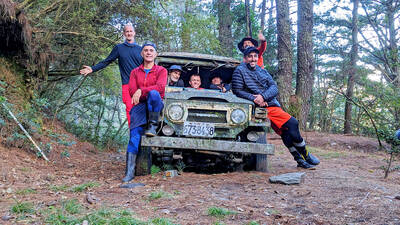
The year was 1991. A Toyota Land Cruiser set out on a 67km journey up the Junda Forest Road (郡大林道) toward an old loggers’ camp, at which point the hikers inside would get out and begin their ascent of Jade Mountain (玉山). Little did they know, they would be the last group of hikers to ever enjoy this shortcut into the mountains. An approaching typhoon soon wiped out the road behind them, trapping the vehicle on the mountain and forever changing the approach to Jade Mountain. THE CONTEMPORARY ROUTE Nowadays, the approach to Jade Mountain from the north side takes an

Last week Joseph Nye, the well-known China scholar, wrote on the Australian Strategic Policy Institute’s website about how war over Taiwan might be averted. He noted that years ago he was on a team that met with then-president Chen Shui-bian (陳水扁), “whose previous ‘unofficial’ visit to the US had caused a crisis in which China fired missiles into the sea and the US deployed carriers off the coast of Taiwan.” Yes, that’s right, mighty Chen caused that crisis all by himself. Neither the US nor the People’s Republic of China (PRC) exercised any agency. Nye then nostalgically invoked the comical specter

Relations between Taiwan and the Czech Republic have flourished in recent years. However, not everyone is pleased about the growing friendship between the two countries. Last month, an incident involving a Chinese diplomat tailing the car of vice president-elect Hsiao Bi-khim (蕭美琴) in Prague, drew public attention to the People’s Republic of China’s (PRC) operations to undermine Taiwan overseas. The trip was not Hsiao’s first visit to the Central European country. It was meant to be low-key, a chance to meet with local academics and politicians, until her police escort noticed a car was tailing her through the Czech capital. The

April 15 to April 21 Yang Kui (楊逵) was horrified as he drove past trucks, oxcarts and trolleys loaded with coffins on his way to Tuntzechiao (屯子腳), which he heard had been completely destroyed. The friend he came to check on was safe, but most residents were suffering in the town hit the hardest by the 7.1-magnitude Hsinchu-Taichung Earthquake on April 21, 1935. It remains the deadliest in Taiwan’s recorded history, claiming around 3,300 lives and injuring nearly 12,000. The disaster completely flattened roughly 18,000 houses and damaged countless more. The social activist and


 RSS
RSS